AVOID DUPLICATES
How to Exclude Creators You Already Know
If your team already has a list of creators, exclusion settings can help you avoid reviewing the same accounts again. Check the scope before making changes that affect colleagues.
Understand the scope first
According to the current guide, creators marked Collect or NO in a project are not recommended again in that same project. A new project may still show creators reviewed in another project.
Creator Exclude provides Auto Dedup and Upload Dedup settings. The app describes the enterprise exclude list as shared across the team; check your account and settings before changing it.
Add a list of creators to exclude
Open Creator Exclude in your EasyKOL settings, then choose Upload Dedup.
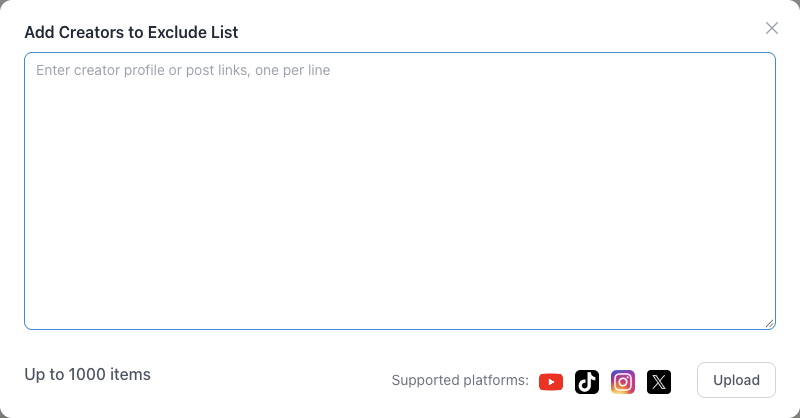
Select Upload List. Paste creator profile or post links, one per line, into the dialog. The screen currently shows a limit of 1,000 items per upload.
Review the supported platforms, list scope and any displayed quota charges before selecting Upload.
Check your exclude settings when you run a new search. Uploaded creators are marked Contacted on their profile, according to the current interface.
Use automatic deduplication
Auto Dedup can filter previously saved or collaborated creators according to the settings shown in your account. Review its current scope and team impact before enabling or changing it.
A Contacted label or an exclusion does not prove a particular brand contacted a creator. Your list represents the information your team added or your settings cover.
Want help finding more relevant creators?
Tell us about your campaign and share a few examples of creators you like. We’ll help you explore an EasyKOL trial.
Chat with us on WhatsApp